Windows 10 End of Support: What Dental Practices Need to Know Now
As part of its mission to advance oral healthcare through innovation, security, and collaboration, the Dental Integrators Association proudly features thought leadership contributed by its member organizations. Each article in this series offers practical insights, shared experiences, and timely strategies from those working at the intersection of IT and dentistry. Together, we are building a smarter, stronger community one idea at a time.
Thank you to Nova Computers Solutions for contributing this article to the Voices of Dental IT series. We appreciate their willingness to share perspective and experience with the DIA community.
This article was authored by Dan De Steno, CEO of Nova Computers Solutions.


On October 14, 2025, Microsoft officially ended support for Windows 10. If your dental practice is still running Windows 10, you need to make critical decisions now about your technology infrastructure, HIPAA compliance, and patient data security. This article explains what Windows 10 end of support means for your practice and outlines your options.


What Does “End of Support” Mean?
Windows 10 end of support means Microsoft will no longer provide security updates, technical support, or bug fixes.
For dental practices, this creates serious risks:
HIPAA Compliance Violations
Running unsupported software with patient data may violate HIPAA requirements
Cybersecurity Vulnerabilities
Unpatched systems are prime targets for ransomware and data breaches
Insurance Issues
Cyber liability insurance may not cover breaches on unsupported systems
Software Compatibility
Some dental software vendors may stop supporting Windows 10
Check your Windows version now:
Go to Settings > System > About. If you see “Windows 10,” take action immediately.
Your Three Options as a Dental Practice
Option 1: Purchase Extended Security Updates (ESU)
Pricing:
- Year 1: $60-80 per device
- Year 2: $120-140 per device
- Year 3: $240-260 per device
Pros: Maintains security, buys time for planned upgrades, preserves dental imaging compatibility
Cons: Increasingly expensive, temporary solution, doesn’t address aging hardware
Best For: Practices with newer computers (3-5 years old) that need time due to budget constraints or dental software compatibility concerns
Option 2: Replace Computers and Upgrade to Windows 11
Investment:
- Basic dental workstation: $800-$1,200
- Advanced workstation (imaging): $1,200-$2,400
- Migration services: $200-$500 per computer
Pros: Modern secure OS, better performance, new warranty, long-term solution (5-7 years)
Cons: Upfront investment, potential dental software compatibility issues, staff training needed
Best For: Practices with computers older than 5 years or ready to modernize their dental IT infrastructure
Option 3: Stay on Windows 10 Without Updates (Non-Compliant)
Critical Risks:
- HIPAA compliance violations with patient data
- Severe security vulnerabilities – exponentially increasing breach risk
- Cyber insurance may not cover incidents on unsupported systems
- Dental software vendors will stop support for Windows 10
- Professional liability exposure if a breach occurs
Best For: This option is not recommended for any dental practice handling patient data. The risks far outweigh any short-term cost savings.
Making the Right Decision for Your Practice
Immediate Action Steps:
1. Inventory Your Systems (This Week)
- Identify all Windows 10 computers
- Determine hardware age
- List critical dental software
- Note imaging equipment connections
2. Assess Your Dental Imaging (Within 2 Weeks)
- Check X-ray system manufacturer/model
- Verify Windows 11 driver availability
- Contact imaging software vendor about compatibility
3. Evaluate Options (Within 30 Days)
- Calculate ESU costs
- Get hardware replacement quotes from your IT provider
- Consider budget and timeline

Timeline Recommendations
If Choosing Extended Security Updates (ESU):
- Immediately:
Deploy ESU licenses - Within 30 days:
Develop 1-3 year replacement plan
If Choosing Hardware Replacement:
- Immediately:
Schedule technology assessment with your IT provider - Within 60-90 days:
Begin phased replacement - Within 120 days:
Complete migration
Recommended Hybrid Approach:
- Phase 1:
Purchase ESU for all systems - Phase 2:
Replace oldest/critical systems first - Phase 3:
Replace remaining computers over 6-12 months
Key Considerations for Dental Imaging Systems
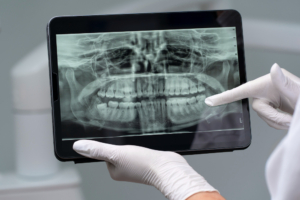
Dental imaging equipment requires special attention during Windows 11 transitions. Many practices face compatibility challenges with X-ray sensors, panoramic systems, and CBCT scanners that were designed for older operating systems.
Before making your decision:
- Contact your imaging equipment manufacturer about Windows 11 compatibility
- Verify driver availability for your specific models
- Test imaging software in a Windows 11 environment if possible
- Have a contingency plan for legacy equipment that may not be compatible
- Work with an IT provider experienced in dental imaging integration
Working with Your IT Provider
This transition requires expertise in dental-specific technology. Your IT provider should offer:
Assessment Services
- Complete system inventory
- Dental imaging compatibility testing
- ESU licensing and deployment
- Hardware recommendations tailored to dental workflows
Ongoing Compliance and Security
- HIPAA-compliant monitoring and maintenance
- Regular security updates and patches
- Backup and disaster recovery solutions
- Cybersecurity protection designed for healthcare
Migration Support
- Complete data backup and verification
- Windows 11 installation and configuration
- Dental software migration and testing
- Imaging system setup and optimization
- Staff training and documentation
Don’t Risk Your Practice’s Security and Compliance
Continuing on unsupported Windows 10 exposes your dental practice to ransomware, data breaches, HIPAA violations, insurance issues, and reputation damage. The question isn’t whether to act-it’s how quickly you can implement a solution that protects your patients, your practice, and your peace of mind.
Get Expert Help
You don’t have to navigate this transition alone. Working with an IT provider who specializes in dental practice technology ensures your transition is smooth, compliant, and minimally disruptive to your operations.
The Dental Integrators Association connects dental practices with experienced IT professionals who understand the unique requirements of dental technology, from practice management software to digital imaging systems.

